
IPTV App Crashing, Slow TV or Login Problems? Complete Fix Guide
An app that keeps crashing, a TV that's suddenly gone sluggish, or a login screen that won't accept your credentials rank among the most common complaints once the novelty of a fresh IPTV setup wears off. If you're hitting IPTV app problems in any of these forms, this guide breaks down the most frequent causes — on the app side, the device side, and the account side — and how to work through each methodically instead of throwing random fixes at the wall.
These problems tend to show up in clusters rather than in isolation: a device that's begun crashing is frequently the same device that also feels sluggish, and a playlist that stops updating properly can masquerade as a login failure even though the actual cause is completely different. Figuring out which of these you're truly facing is the real first step toward a fix, rather than attempting every remedy at once and never knowing which one actually worked.
Why IPTV apps crash, slow down, or refuse to log in
These three symptoms — crashing, sluggishness, and login failures — get grouped together often enough because they tend to appear around the same time on the same aging setup, but each one usually has its own distinct root cause:
- Cache buildup inside the app, which accumulates over time and eventually leads to instability, especially in apps that store a lot of channel and guide data locally.
- Limited device storage, which drags down app performance well before it triggers any obvious alert, since most devices don't clearly warn you that space is running low until problems have already started.
- An app that's fallen behind on updates, out of step with changes to the streaming service or the device's operating system, creating small incompatibilities that surface as crashes.
- Wrong login details or a broken playlist URL, frequently the result of a copy-paste slip that's easy to miss when typing on a tiny remote-driven keyboard.
- An underpowered or older device that struggles to run a modern player app smoothly while juggling other background tasks, particularly once it's a few years old.
A step-by-step approach to fixing crashes and slow performance
1. Restart the device itself, not just the app
Closing and reopening the app clears up some issues, but a genuine device restart flushes background processes and memory buildup that a simple app restart can't touch — it's the first thing worth trying for both crashing and sluggishness, and it only costs a minute or two.
2. Check how much storage is actually free
On Firestick and Android TV in particular, tight storage causes performance problems well before you ever see an explicit warning. Open your device's storage settings and clear out apps, old downloads, or games you're not using if space is limited.
3. Clear out the app's cache
Most player apps build up cached data over time that can eventually trigger crashes or slowdowns. Clearing the cache through your device's app settings — without uninstalling anything — usually fixes this without forcing you to log in again, since your credentials typically survive a cache wipe even though cached channel data doesn't.
4. Make sure the app is fully updated
If it's been a while since your player app updated, take care of that before troubleshooting anything further. Developers regularly patch stability problems, and running an outdated version is one of the more overlooked causes of unexplained crashing — easy to miss since the app still technically opens.
5. Treat a full uninstall and reinstall as the last resort
If clearing the cache and updating haven't fixed things, wiping the app entirely and reinstalling gives you a completely fresh copy. Keep your login details or M3U link within reach for setting it back up, so pull up your original welcome email before you start.
6. Shut down other apps running in the background
On less powerful devices, other open apps compete for the same limited memory and processing power, which can make an otherwise perfectly fine IPTV app feel slow or unresponsive even though nothing is actually wrong with it.
7. Double-check that your device is actually up to the task
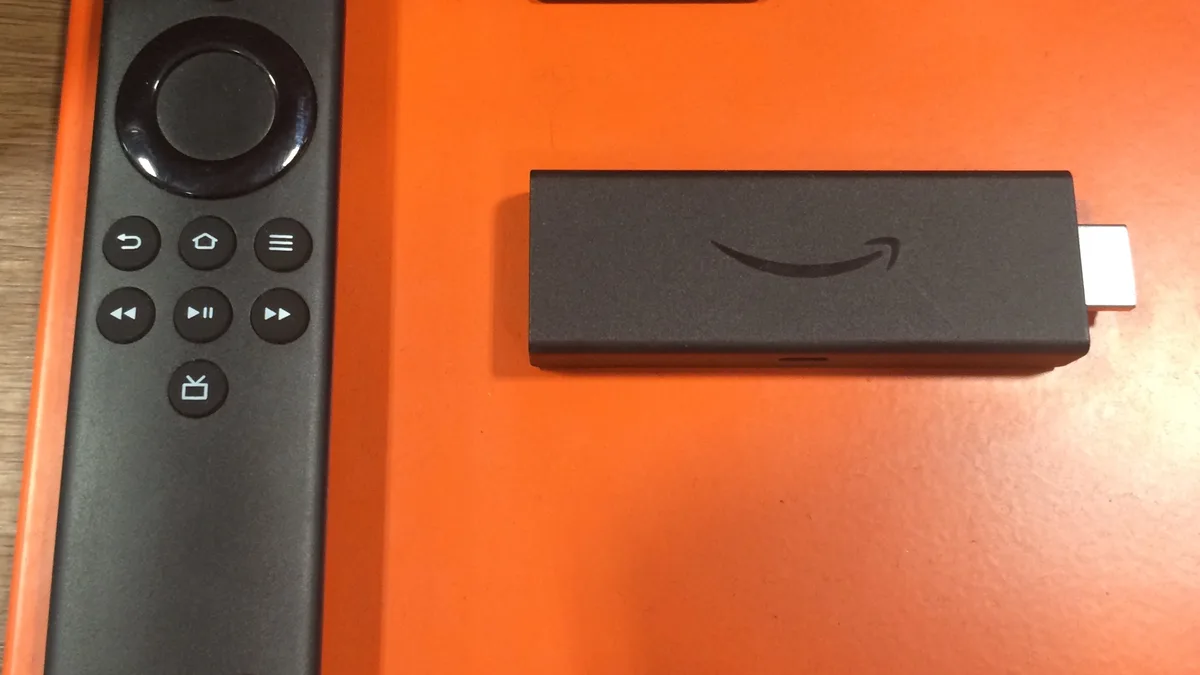
Older streaming sticks and entry-level Smart TVs can struggle to keep up with modern player apps no matter how well they're maintained. If performance problems persist through every fix above, the hardware itself may be the bottleneck — our devices page covers what to look for in something more capable.
Fixing IPTV login problems
Login failures are almost always a data-entry mistake rather than a genuine account issue. Compare your username, password, and server URL carefully against your original welcome email, paying close attention to stray spaces before or after each entry — one of the most common and hardest-to-notice reasons a login gets rejected. It's also worth checking whether autocorrect or autocapitalize on a phone or tablet quietly altered a field, if that's where you originally typed your details before moving them over.
Fixing an IPTV playlist that won't load
If your M3U playlist isn't loading, first confirm the link was copied completely — a truncated URL is a frequent culprit, especially when copying from an email on a small screen where the entire link isn't visible at once. After entering it, give it a few minutes, since a newly added playlist can take time to fully sync, particularly over a slower connection. Our M3U playlists guide explains exactly how these links function if you'd like more background before troubleshooting further.
App problems specific to Firestick
Firestick's comparatively tight base storage makes it more susceptible to the performance issues covered above than devices with more room to spare. If slowness or crashing keeps showing up specifically on a Firestick, our Firestick installation guide covers a clean setup process that resolves many of these problems at the root.
Login and app problems on Android TV
Android TV devices generally manage apps more gracefully than a Firestick, but login and playlist trouble can still crop up after switching Wi-Fi networks or after a factory reset clears saved credentials. If an app that worked fine yesterday suddenly asks you to log back in, that's typically expected behavior following an update or reset rather than a sign of a deeper issue — simply re-entering your details takes care of it.
When the issue genuinely isn't on your end
If login keeps failing despite details you've triple-checked, or a playlist refuses to populate no matter how long you wait, it's worth confirming your subscription status rather than continuing to troubleshoot locally — an account-side problem can look identical to a technical one from where you're sitting. IPTV World Pro can't repair a device that's simply too old to run current apps smoothly, but we can quickly tell you whether an issue is account-related or technical.
How IPTV World Pro supports setup, login, and playlist issues
Our support team handles exactly this kind of problem on a regular basis — confirming account status, verifying credentials, and helping troubleshoot playlist or app-specific issues on a given device. If you've worked through this entire guide and things still aren't cooperating, contact IPTV World Pro support with your device and a description of what's happening, and we'll help figure out whether it's a setup issue or something else.
For a complete walkthrough from checkout to your first stream, our setup guide covers the general process, and our installation guides break it down device by device.
Keeping your IPTV app running smoothly going forward
A little routine upkeep goes a long way toward preventing this entire category of problem from resurfacing. Clear your app's cache every month or two instead of waiting for performance to visibly degrade — it's a thirty-second task that heads off a much longer troubleshooting session down the road. Keep tabs on your device's available storage the same way, since streaming devices rarely give you a clear warning before storage becomes an actual problem. Keep your login details and M3U link somewhere easy to find, whether that's your original welcome email or a notes app, so a reinstall or a new device setup doesn't turn into a scramble to track down your credentials.
If you're running IPTV across several devices in your household, it's worth standardizing on the same player app wherever possible — troubleshooting becomes far more predictable when every device behaves the same way, instead of juggling different apps with different quirks and settings menus.
Conclusion
Crashes, sluggish performance, and login failures feel like unrelated problems, but they typically trace back to a short, predictable list of causes: cache, storage, outdated software, or a data-entry slip. Working through the steps above in order clears up the majority of cases without needing outside help. When it doesn't, our support team is ready to help you figure out what's really going on with your specific setup.