
Installation Guide
Setting Up IPTV World Pro on Apple TV
Apple TV can run IPTV World Pro either through a player app from the tvOS App Store or by AirPlaying from another Apple device — this guide covers both approaches.
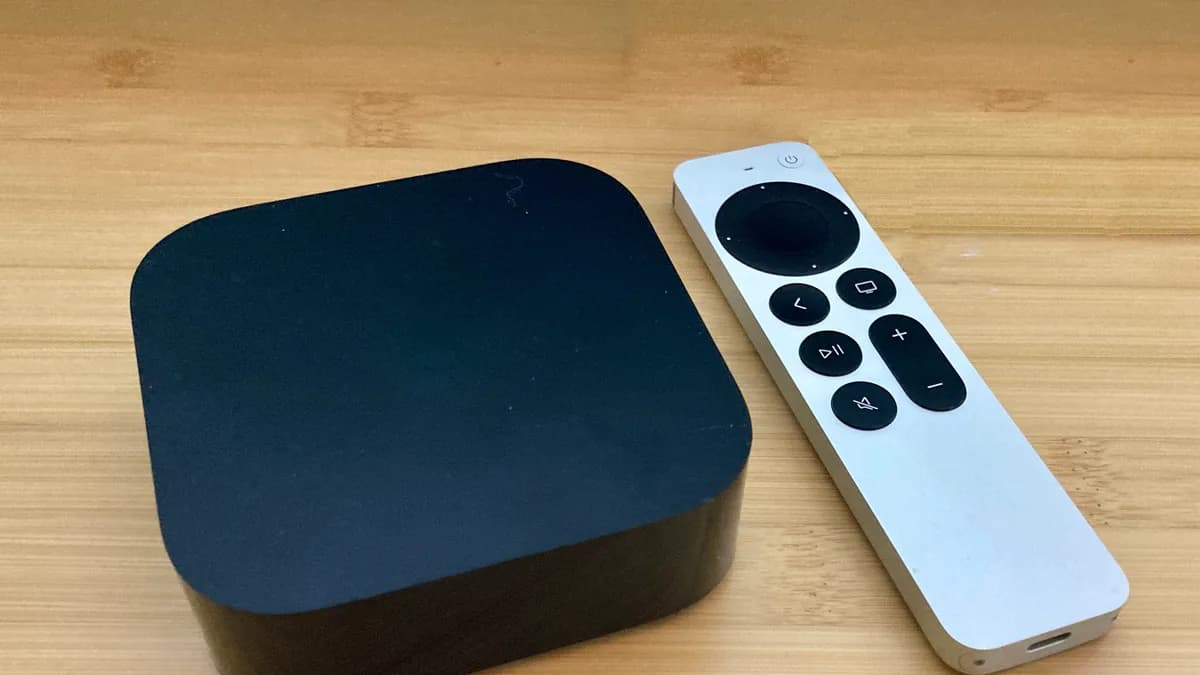
What you’ll need
- An Apple TV HD or Apple TV 4K (4th generation or newer)
- An Apple ID signed in on the Apple TV
- A live IPTV World Pro subscription with your login details
- A stable internet connection
Step-by-step instructions
- 1
Open the tvOS App Store
From the Apple TV home screen, open the App Store and search for a compatible IPTV player.
- 2
Install the app
Select the app and choose Get to install it.
- 3
Load your IPTV World Pro playlist
Open the app and enter your username, password, and server URL, or your M3U link, on the playlist setup screen.
- 4
No app available? Use AirPlay instead
If there's no suitable tvOS app for your region, install a player on your iPhone, iPad, or Mac and use AirPlay to send playback to the Apple TV.
Troubleshooting
No IPTV apps turn up in the tvOS App Store search
App availability depends on region and Apple TV generation. AirPlaying from an iPhone, iPad, or Mac is a dependable fallback.
The AirPlay option is greyed out
Confirm both devices are signed in with the same Apple ID and connected to the same Wi-Fi network.
Playback buffers often
Connect the Apple TV to Ethernet with an adapter, or move it closer to the router.
Still need help? Check our FAQ page or contact support.