
How to Fix IPTV Buffering and Freezing: A Complete Troubleshooting Guide
Few things wreck a movie night like the screen locking up mid-scene, or a live match that keeps stopping to reload itself. If IPTV buffering has become a regular guest in your living room, take some comfort in this: it's one of the more solvable streaming headaches out there, and it's rarely a genuine mystery once you know what to check.
Below is a rundown of what actually triggers buffering and freezing, a methodical way to isolate the cause on your own setup, and an honest look at when the issue simply isn't something you can resolve on your end.
What actually causes IPTV buffering and freezing
Buffering shows up when your device can't pull video data down as quickly as it needs to keep playing, so it pauses playback to let more data catch up. Freezing is the same root problem in a different costume — rather than a loading spinner, the picture just locks on one frame, while the sound might keep going, stutter, or drop out altogether. In both cases, the underlying bottleneck is identical: information isn't reaching your device fast enough, or steadily enough, to keep pace with the video. A short list of factors is usually behind it:
- Connection speed that falls short of what the stream demands, particularly for Full HD or 4K channels, which need noticeably more sustained bandwidth than a standard HD feed.
- A shaky Wi-Fi signal — walls, distance from the router, and interference from appliances like microwaves or cordless phones can all cut your real-world throughput, sometimes to less than half of what your plan claims.
- Multiple devices sharing one connection at once, including gadgets that have nothing to do with streaming, such as a laptop syncing to cloud storage or a phone pulling down an app update in the background.
- A streaming device that's underpowered for the job and can't decode video quickly enough — this is especially common on older Firesticks and entry-level Smart TVs never built for today's higher-bitrate content.
- Short-lived network congestion, whether inside your own house, on your ISP's end during busy evening hours, or somewhere along the path the stream travels to reach you.
Picture your internet connection as a pipe, with the video stream as water running through it. When the pipe is too narrow for the flow the stream calls for — thanks to a slow plan, a patchy signal, or several other devices drawing from the same line — the video has nothing left to do but pause and wait its turn. Nearly every fix that follows is really just a different way of widening that pipe, or thinning out what's competing for it.
Step-by-step: how to fix IPTV buffering
Go through these in sequence — most buffering issues get resolved somewhere within the first four steps.
1. Run a speed test from the streaming device itself
Checking your speed on a phone while streaming on a separate Firestick tells you almost nothing, because the two devices can pull noticeably different real-world numbers even sitting on the same network. If the streaming device has its own browser, run the test right there, or at the very least test on the same Wi-Fi band in the same room. A workable target is roughly 15 Mbps sustained for HD and 25 Mbps or higher for Full HD — and keep in mind that "sustained" throughput matters far more than the peak figure your provider advertises.
2. Move from Wi-Fi to a wired connection wherever you can
This tends to be the single most effective fix for buffering that won't go away. An Ethernet cable — or a USB-to-Ethernet adapter for devices that support one — takes Wi-Fi interference out of the picture entirely and delivers a much steadier data flow. If running a cable all the way to the TV isn't realistic, a powerline adapter that piggybacks on your home's electrical wiring offers a decent compromise between Wi-Fi and a full wired run.
3. Shut down background apps and idle devices
Downloads, cloud syncing, video calls, and other streams running elsewhere in the house are all pulling from the same bandwidth pool. Pausing them, even briefly, often clears up intermittent buffering almost immediately — this is especially worth trying if the trouble seems to intensify in the evening, when overall household usage tends to spike.
4. Drop the stream's resolution by hand
Most IPTV player apps give you the option to pick a fixed resolution instead of leaving it on auto-quality. If your line can't reliably hold 4K or Full HD, stepping down to HD is usually far easier to watch than a picture that keeps stalling every couple of minutes. Treat this as a diagnostic tool as well — if the buffering disappears once you lower the resolution, that confirms bandwidth is the real bottleneck rather than something else entirely.
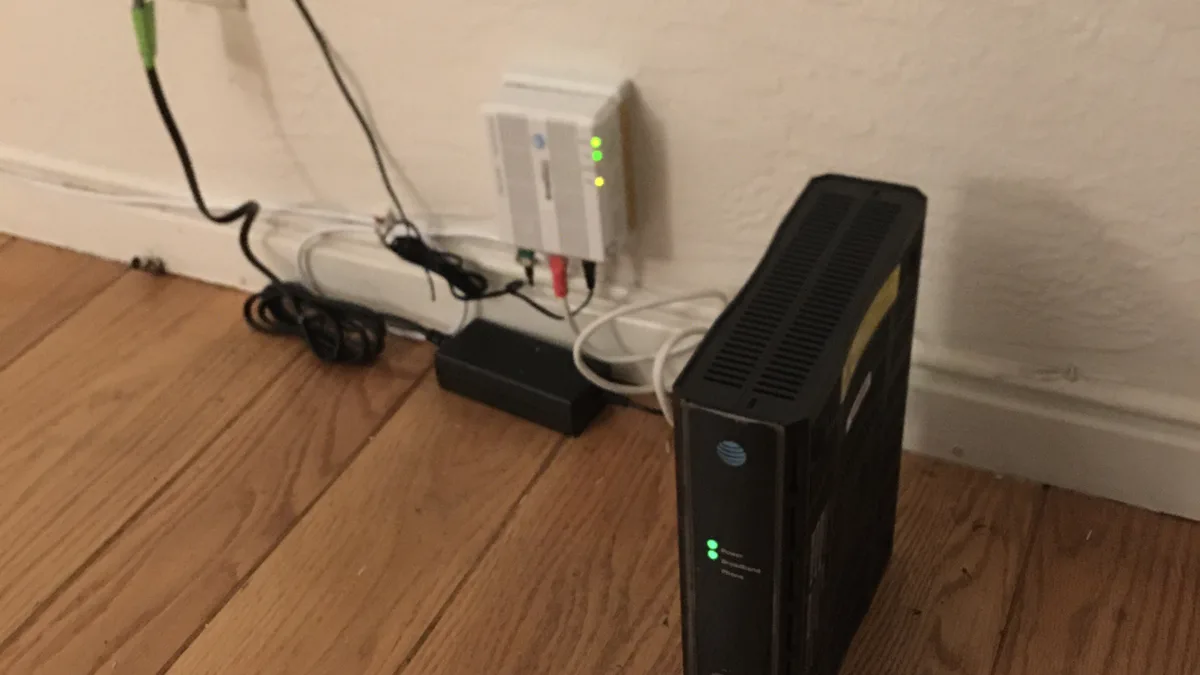
5. Restart the router, modem, and streaming device — in that order
Power everything down, let it sit for about 30 seconds, then bring the modem back first, followed by the router, followed by your streaming device once the router has fully reconnected. This flushes out any temporary memory hiccups across all three and gives you a fresh connection instead of one that's been running nonstop for weeks.
6. Get your IPTV player app up to date
Older versions of player apps sometimes carry inefficient buffering logic that a newer release has since fixed, especially around how aggressively video gets pre-loaded. Check your app store, or wherever you sideloaded from, for a pending update before assuming your network is to blame — it takes only a couple of minutes and rules out a whole category of possible causes.
7. Disable any VPN, or try switching your DNS
Routing traffic through a VPN adds an extra hop, which can introduce latency and cut into throughput — it's worth turning off temporarily to see whether it's a factor, particularly if the VPN server you're connected to sits far away geographically. Switching over to a public DNS such as 1.1.1.1 or 8.8.8.8 can also trim small delays on some home networks, although the payoff here tends to be smaller than what you'll get from the fixes above.
IPTV buffering on Firestick
Firestick is budget-friendly, but its base model comes with limited storage and processing muscle compared to a dedicated Android TV box. If buffering keeps showing up specifically on a Firestick, take a look at how many other apps are installed and running in the background, and consider a factory reset if the device has built up years of cached clutter. First- and second-generation Firestick models in particular can have trouble keeping up with Full HD content even over a fast connection, simply because the hardware itself — not your network — is the limiting factor. Our Firestick installation guide also covers the app-side settings worth reviewing while you're at it.
IPTV freezing on Smart TV
The apps built into Smart TVs run on hardware that wasn't necessarily designed with heavy streaming loads in mind, which helps explain why IPTV freezing on Smart TV shows up more often on older sets. If freezing seems limited to your TV and doesn't happen on other devices in the house, try closing any other apps open on the TV, and check whether you're able to run a wired connection — our Smart TV installation guide walks through the platform-specific steps for Samsung and LG.
IPTV buffering on Android TV
Android TV boxes typically cope with buffering better than budget streaming sticks, thanks to stronger processors, but they aren't immune either. If freezing turns up on an Android TV device, check for other apps still running in the background — Android TV's multitasking makes it easy to leave several open without noticing — and make sure the device isn't also handling downloads or app updates while you're trying to stream. Our Android TV installation guide covers setup and basic app management if you're starting from scratch.
When the problem is not your device
If you've gone through the steps above on more than one device and the same channel keeps stuttering, the cause could well sit outside your home network altogether — anything from local congestion during peak hours to a temporary hiccup with that particular channel's source. It's worth being realistic about what's within reach here: no IPTV provider, IPTV World Pro included, can adjust your home Wi-Fi signal, reposition your router, or improve your internet provider's underlying performance. What a provider can do is help you rule out account- and app-side causes and steer you toward the network fixes covered above.
If the buffering only happens on one particular channel, switch to another to confirm — a problem isolated to a single stream is a different animal than broad connection trouble, and it's worth flagging separately instead of assuming your entire setup is at fault. Likewise, if buffering only crops up at a certain time of day, that pattern usually points to household or neighborhood network congestion rather than anything wrong with your account or device.
How IPTV World Pro helps with buffering and playback issues
IPTV World Pro is built with a stable streaming experience as the goal, and our support team spends a good deal of time walking customers through exactly this kind of playback troubleshooting — verifying account status, checking for app-side problems, and helping you work out whether the issue is coming from your connection, your device, or something on our side. We won't claim buffering can never happen, because that wouldn't be truthful — network conditions vary too widely for any provider to guarantee otherwise. What we can offer is a methodical way to eliminate possibilities until you land on the real cause. If you've worked through this guide and buffering is still standing in your way, our support team can dig into your specific setup.
Picking a plan built around a stable connection matters too. Take a look at what's included across our subscription plans, and check our supported devices page if you're weighing a switch to hardware better suited for smooth playback.
Conclusion
Buffering and freezing can feel completely random while they're happening, but they nearly always trace back to something specific and identifiable — usually bandwidth, an unstable Wi-Fi connection, or a device that's overdue for a restart. Working through the steps in order, rather than jumping to the most drastic option first, is the quickest route to actually fixing it instead of just guessing at it. If you've tried everything here and the problem persists, don't hesitate to reach out to IPTV World Pro support — a fresh set of eyes on your particular setup often spots something a general guide can't.